 tangzily
Team and roles
Issue access, assign permissions, and manage employee accounts.
Who can use this
Team management requires Manage team access. Password reset is available to the owner for eligible managed accounts.
Instructions
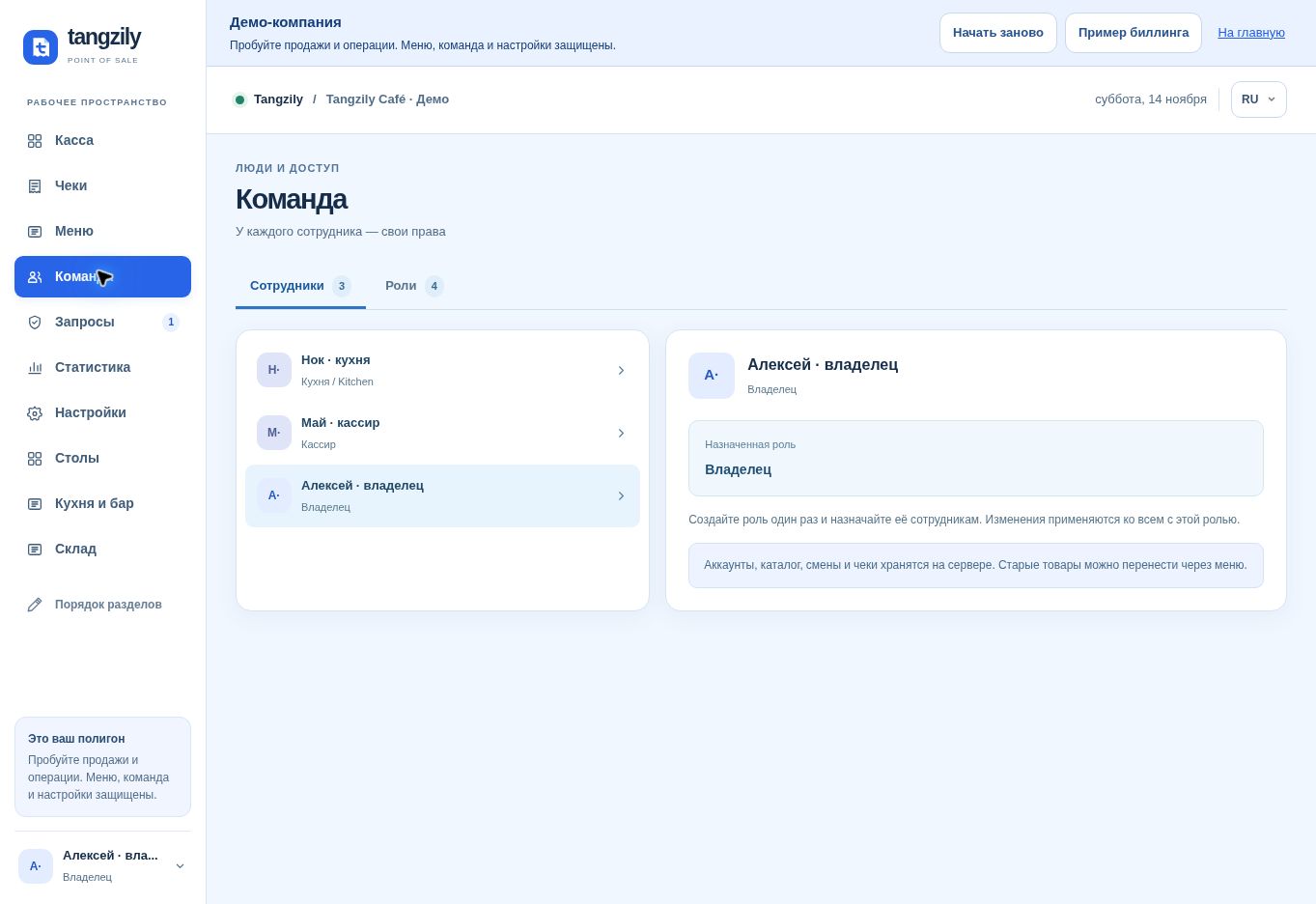
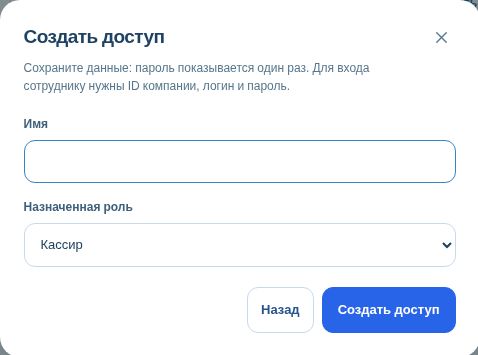
- In Team, select Create access or link an existing employee. Review the role before saving.
- Share the company ID and issued credentials through a private channel. The initial password is shown once.
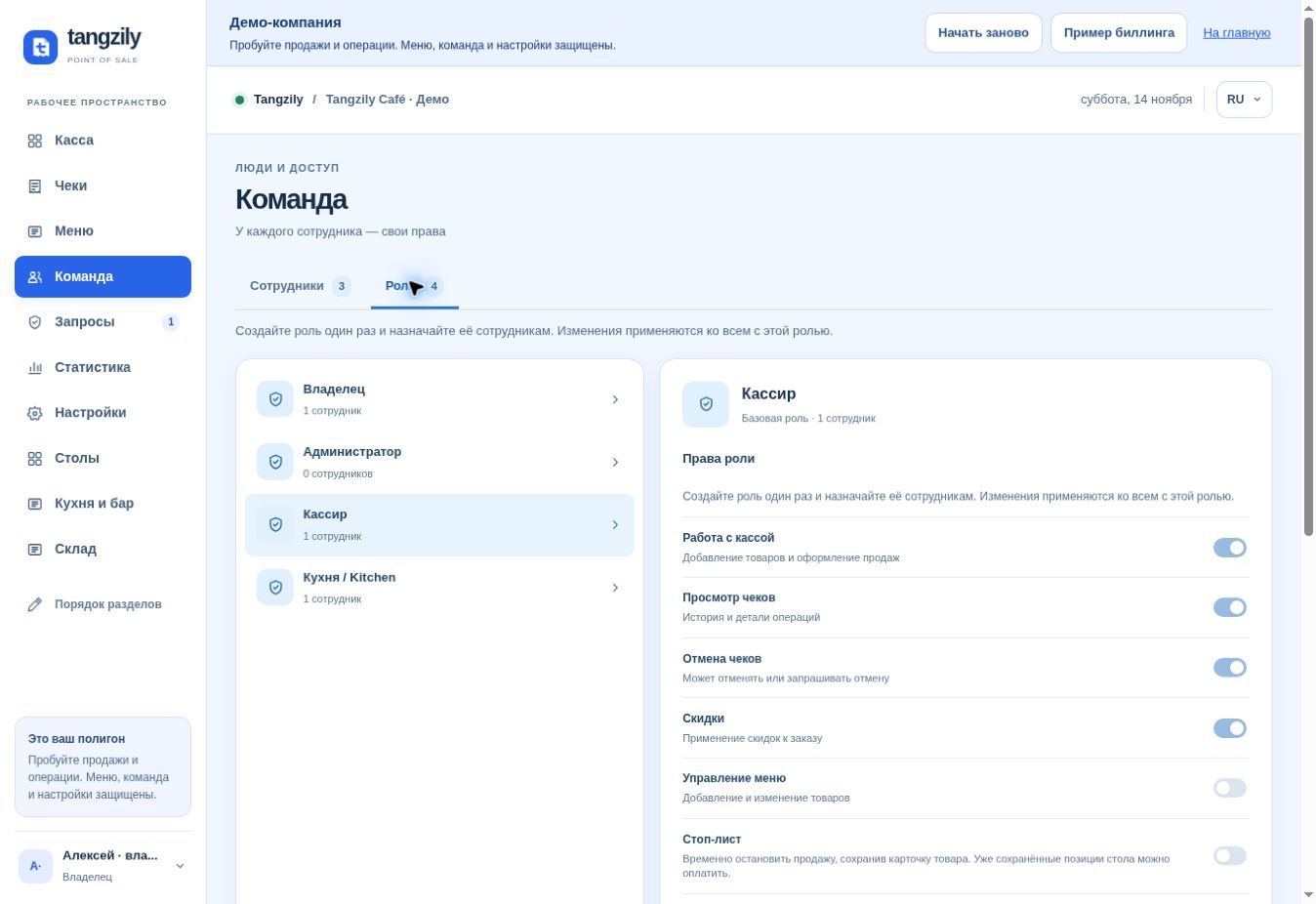
- Open Roles to manage permissions. Pause access when needed and inspect the activity log for account changes.
Buttons and fields
- Employees / Roles
- Switch between staff and role management.
- Create access / Copy credentials
- Create a managed account or copy the one-time credentials while displayed.
- Add existing / Employee requests
- Link an account or review a pending request.
- Assign role
- Apply the selected role to the employee.
- Create role / Save permissions
- Add a role or apply permissions to everyone using it.
- Rename role / Delete role
- Change a role name or remove an unused custom role.
- Reset password
- Issue a replacement password and end affected sessions.
- Suspend access / Restore access
- Remove or restore access to this company.
- Staff activity
- Review changes to access and devices.