 tangzily
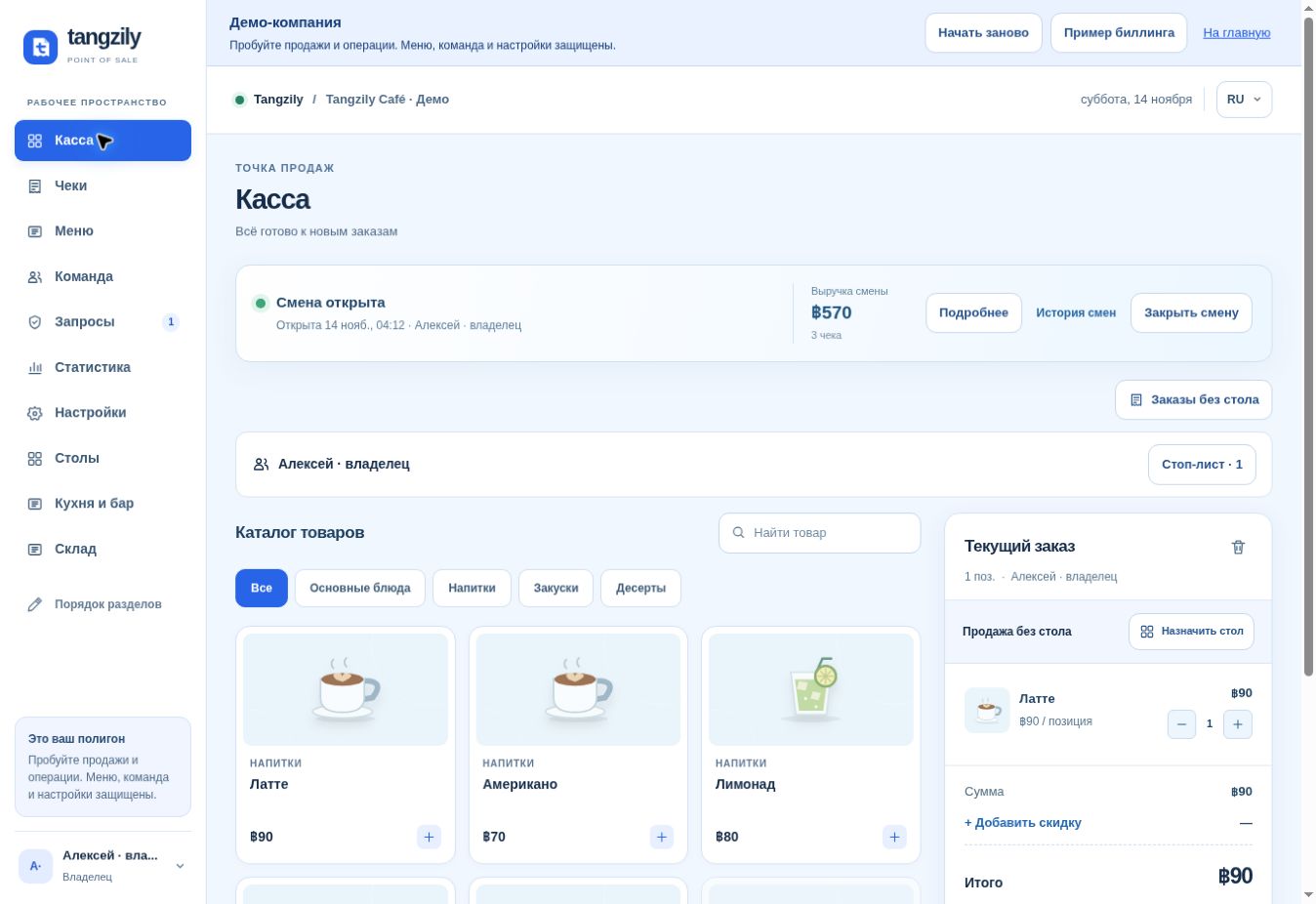
Register and current order
Find products, build an order, and choose where to send it.
Who can use this
Selling requires register access and an open shift.
Instructions
- Search by product name or select a category. Select a product to add one unit.
- Review quantities and the total. On a phone, tap View order to open the cart.
- Proceed to payment, assign the cart to a table, or save it as a counter order. If the kitchen prepares the items, send the order or changes to the kitchen.
Buttons and fields
- Find products / All
- Search the catalog or clear the selected category.
- − / +
- Decrease or increase quantity in the current order.
- View order
- Open the cart on a phone.
- Clear order
- Empty the current cart. Check the order before clearing it.
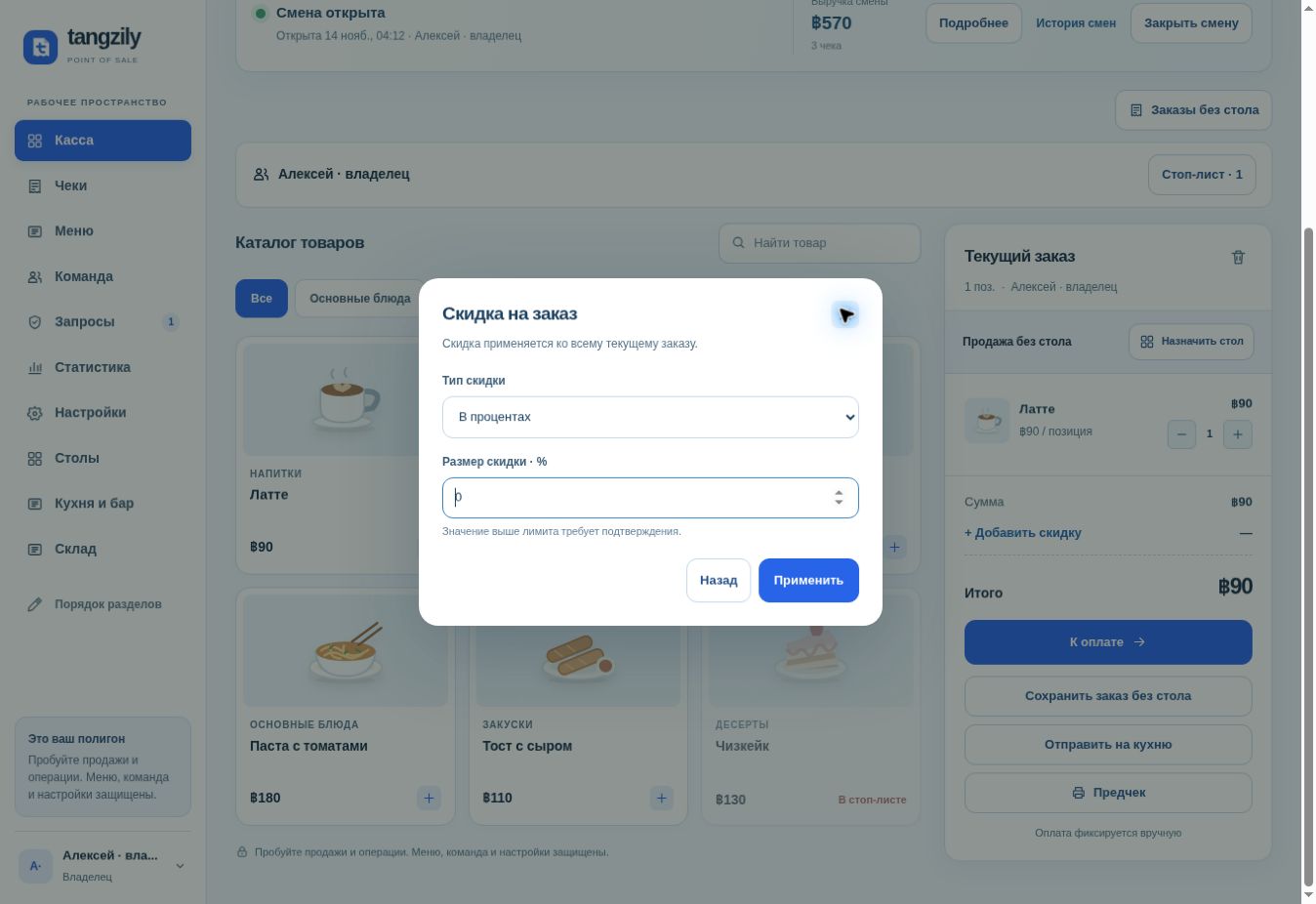
- Add discount
- Set a percentage or fixed amount, subject to your role and company limits.
- Assign table
- Select a dining location for the current cart.
- Save counter order
- Save an order for later without assigning a table.
- Send to kitchen
- Send new items and changes to the assigned stations.
- Precheck
- Preview the amount due before payment.
- Checkout
- Open the payment screen.